
Learn while you watch
How to Translate Video Audio with Floating Chinese Captions
Follow videos in another app with floating Chinese translation, pinyin, and playback while understanding platform limits and privacy.
Videos contain natural vocabulary, connected speech, and real situations, but switching repeatedly between a video and a translator breaks concentration. Floating translation keeps short captions visible while the video continues in its own app, making it easier to notice useful Chinese expressions without leaving the scene.
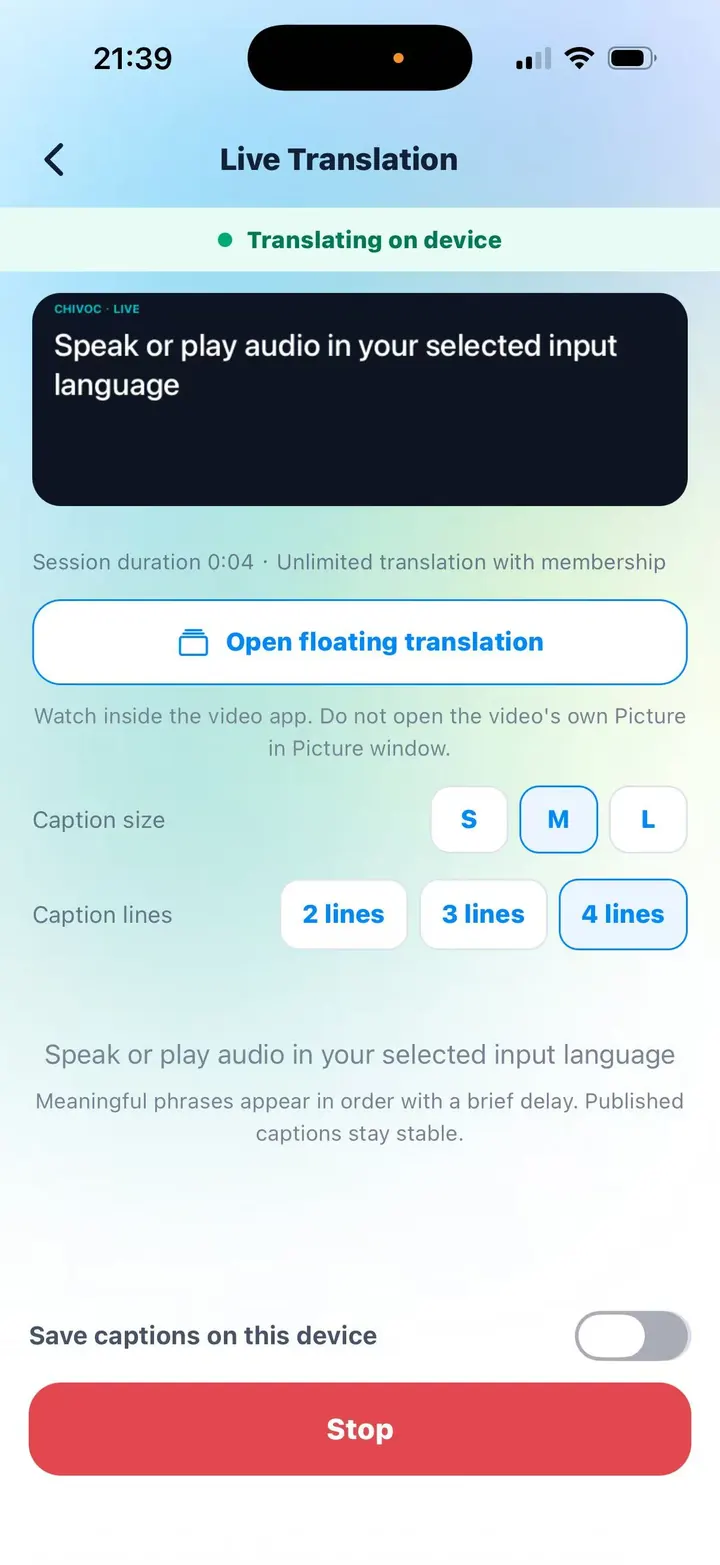
Chivoc’s screen-audio mode listens to the audio a supported device shares from another app. It does not read or translate the screen image. The translated caption appears in a floating window; when Chinese is the target, you can also review pinyin and play local pronunciation from the full transcript.
How the floating-caption flow works
- Choose the video’s spoken language and the language you want for the captions.
- Start screen-audio translation and approve the operating system’s capture permission.
- Open Chivoc’s floating caption window, then return to the video app and play the video there.
- Pause translation when you need time to read; audio during the pause is not translated later.
- Return to Chivoc after the video to review the complete session transcript and save it locally if useful.
Use captions for active study, not passive collecting
Choose a short clip with clear speech. Watch once for meaning, then replay a 20- to 40-second section. Select two useful Chinese lines, inspect their pinyin, listen to the local reading, and imitate the rhythm. Finally, watch the section again without looking at the translation whenever possible.
Automatic captions usually appear after a brief delay because the app needs a meaningful phrase before translating it. Published lines stay stable, while older lines remain available in the transcript for review.
Platform and content limitations
Screen-audio translation depends on operating-system support: Android screen audio requires Android 10 or later, while the current iPhone implementation requires iOS 26 or later. Android also needs permission for Chivoc to display captions over other apps. On iPhone, the caption Picture in Picture window can replace another active video floating window, so the video should continue inside its original app.
Some protected or restricted media does not share audio with third-party capture. If no sound is detected, try another video or use microphone mode with the video playing through the speaker. Support can vary by device manufacturer and app.
What is and is not captured
Chivoc uses the shared audio for on-device speech recognition and translation. It does not save the video, read screen images, upload the audio, or retain a recording. A transcript is stored only when you choose to save it, and that history stays on the device.
The first use still needs internet access to download supported offline speech and translation resources. Provider availability and system permissions determine which languages and video sources can be used on a particular phone.